OneBot V11 / NapCat Configuration Guide
This guide explains how to configure OneBot V11 / NapCat and connect Nekro Agent to QQ.
Tip
If you installed NekroAgent with the Windows Launcher, you can complete the network setup directly from the launcher's NapCat page with one click.
Before You Start
- You have already deployed Nekro Agent and can open the WebUI
- You have a QQ account that will be used for the bot
- You know the Nekro Agent access address, for example
http://<server-ip>:8021
Step 1: Enable OneBot V11 in Nekro Agent first
- Open the Nekro Agent WebUI
- Go to
Adapters->OneBot V11 - Open the
Configurationpage - Turn on
Enable Adapter - Fill in
Bot QQ Number - Fill in
NapCat WebUI URL - Save the adapter configuration
- Restart Nekro Agent
- Go back to the
OneBot V11adapter and open theNapCatpage - Note the
OneBot Service Access KeyandNapCat Login Tokenshown on the page
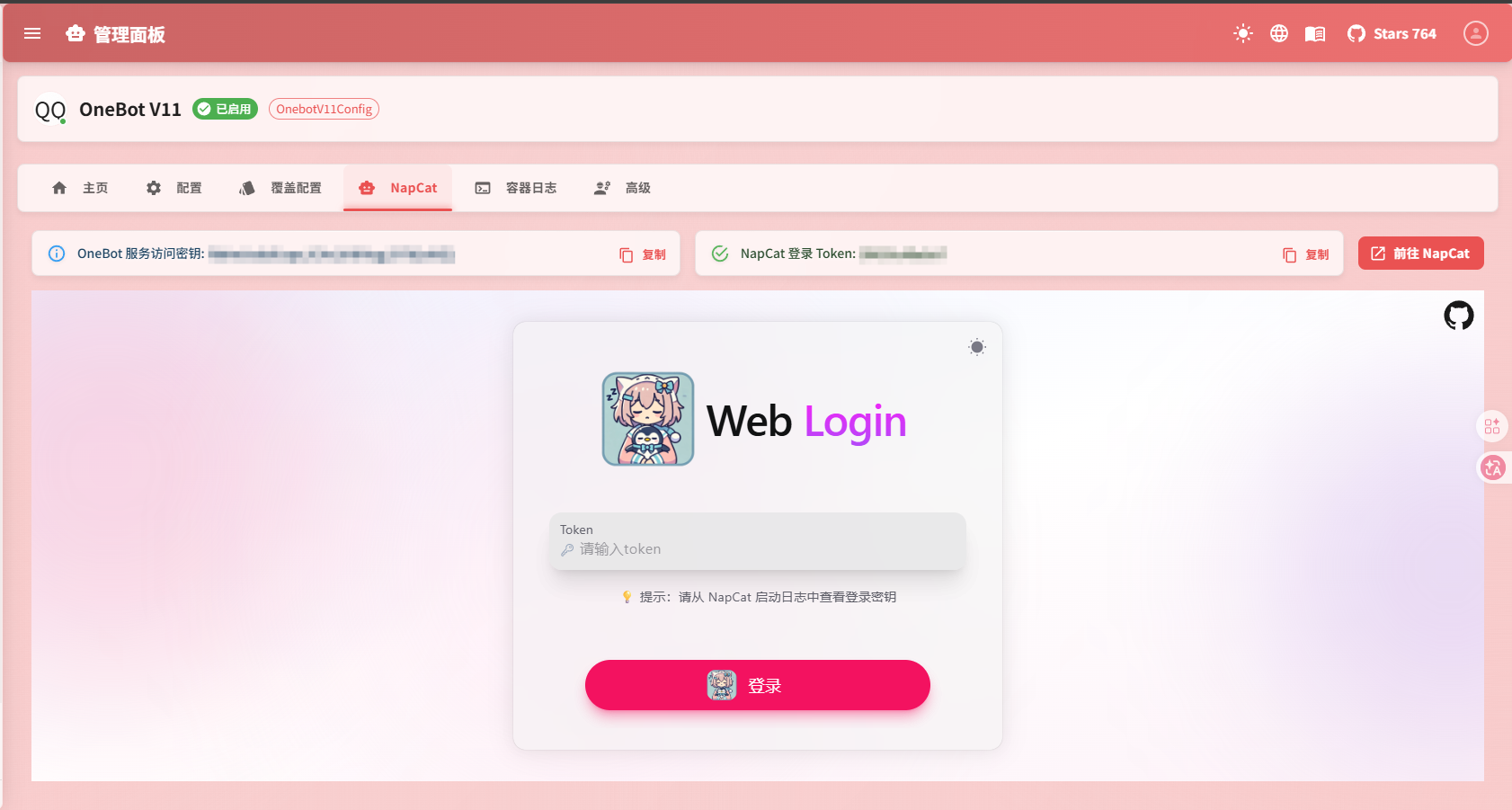
How to fill these fields
BOT_QQ: QQ number used by the botRESOLVE_CQ_CODE: Leave default in most cases; only enable it if you explicitly need the protocol side to parse CQ codeNAPCAT_ACCESS_URL: NapCat WebUI address, commonlyhttp://<server-ip>:6099/webuiNAPCAT_CONTAINER_NAME: Usually does not need to be changed in a default deployment
Step 2: Log in to NapCat
- Open the NapCat WebUI, commonly at
http://<server-ip>:6099/webui - Log in with the
NapCat Login Tokenyou noted earlier - Use the method provided on the page to log in to QQ
- Make sure NapCat shows an online status
- If this is your first time opening it, go to
System Settings->Change Passwordand change the default password first
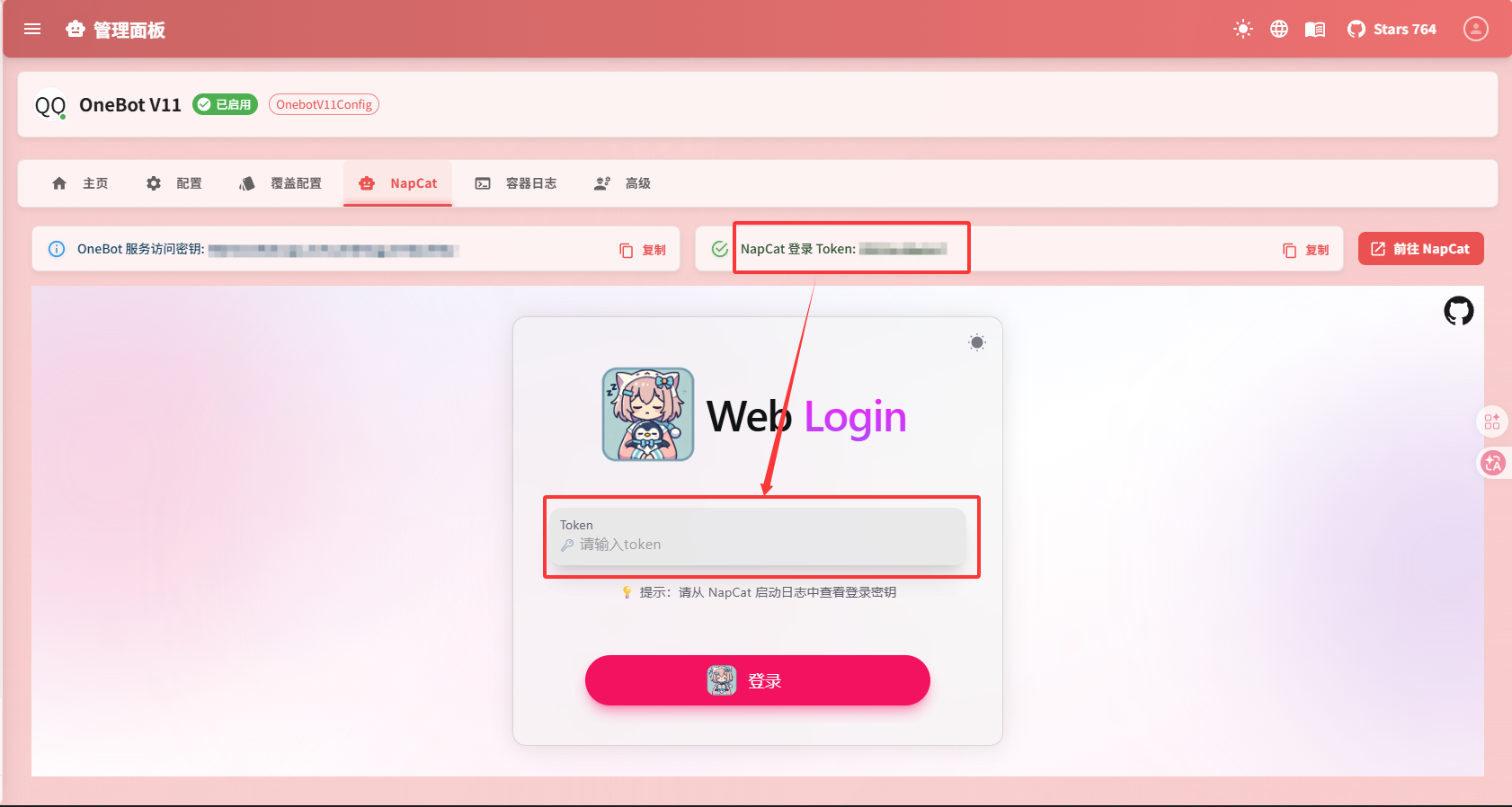
Step 3: Configure reverse WebSocket in NapCat
- Open
Network Configurationin NapCat - Add a
WebSocket Client - Fill in the address:
ws://nekro_agent:8021/onebot/v11/wsIf you are not using the all-in-one container deployment, you can change it to:
ws://<your-server-ip>:8021/onebot/v11/ws- Set the authentication key to the
OneBot Service Access Keyshown in Nekro Agent - Save and enable this connection
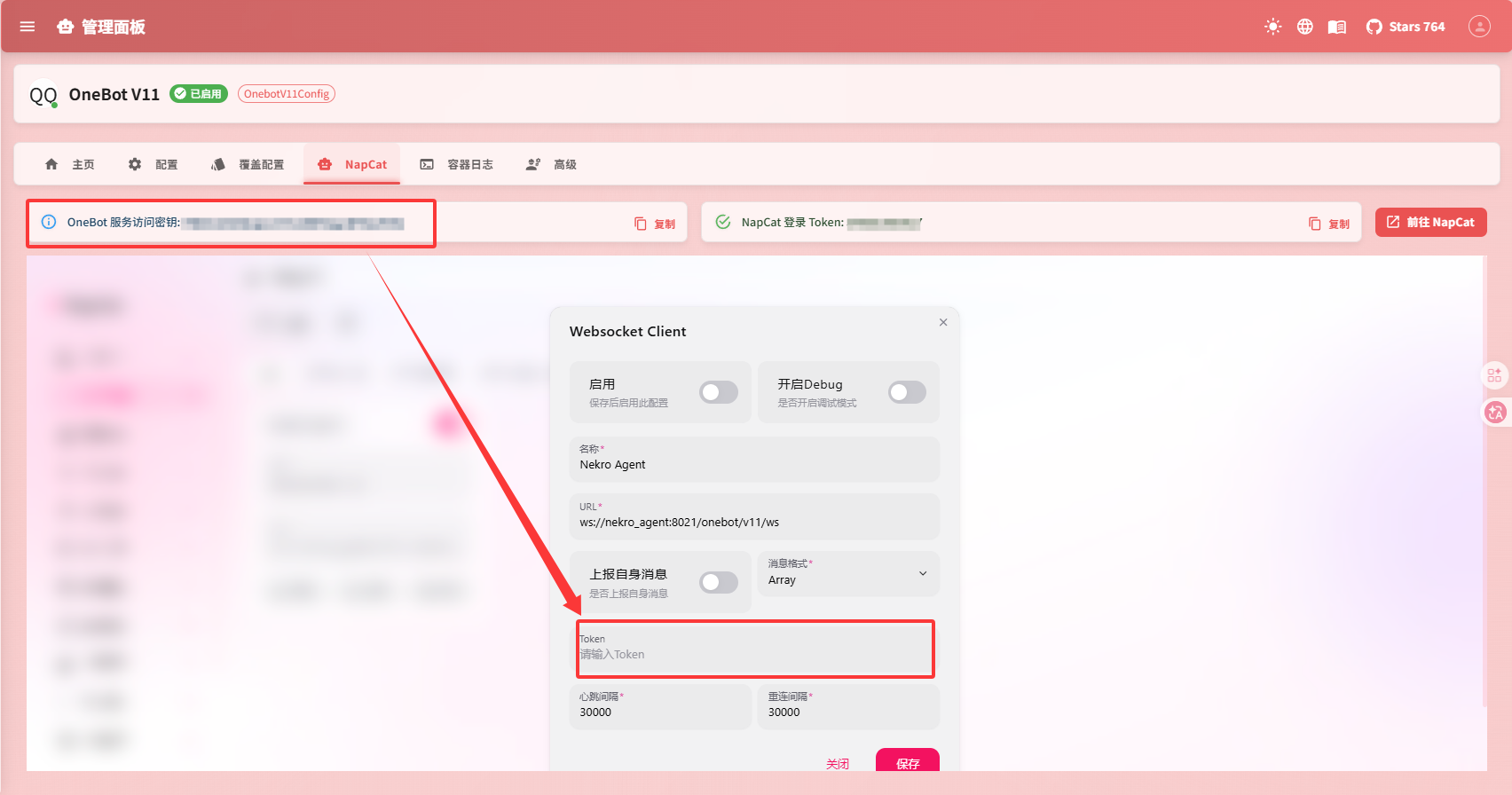
Step 4: Confirm that the connection works
After completing the setup above, check in this order:
- Open
Cat Logsin NapCat - Check whether there are any WebSocket-related errors
- Send a private message to the bot
- Go back to Nekro Agent and open
System Logsto see whether the message you sent appears - If it does, the configuration is successful
If You Are Not Using NapCat
If you are using another OneBot V11 compatible protocol implementation, you only need to point its reverse WebSocket URL to:
ws://<your-server-ip>:8021/onebot/v11/wsIf you also need image upload, file upload, or similar features, make sure Nekro Agent and the protocol implementation share the same mounted file paths.
What You Will See After the Setup
- Group chats appear as
onebot_v11-group_<group-id> - Private chats appear as
onebot_v11-private_<qq-number>
Both are normal and do not need to be changed manually.
Common Problems
NapCat is online, but Nekro Agent does not receive messages
Check these first:
- Whether the reverse WebSocket URL is correct
- Whether the
OneBot Service Access Keyis correct - Whether the connection switch in NapCat is actually enabled
- Whether the
OneBot V11adapter is enabled in Nekro Agent
Messages can be received, but not sent
This is usually caused by one of the following:
- The bot account is restricted by the platform
- The bot account has been muted
- The connection between the protocol implementation and Nekro Agent has been disconnected
Images or files fail to send
If you are not using the standard all-in-one deployment, check the file mounting first:
- Whether the protocol implementation supports sending images and files
- Whether Nekro Agent and the protocol implementation can access the same file path
- Whether the file size exceeds the platform limit