Telegram Configuration Guide
This guide explains how to configure the Telegram adapter and connect Nekro Agent to a Telegram Bot.
Before You Start
- You have already deployed Nekro Agent and can open the WebUI
- Your network can reach Telegram
- If your network cannot reach Telegram directly, prepare a proxy URL in advance
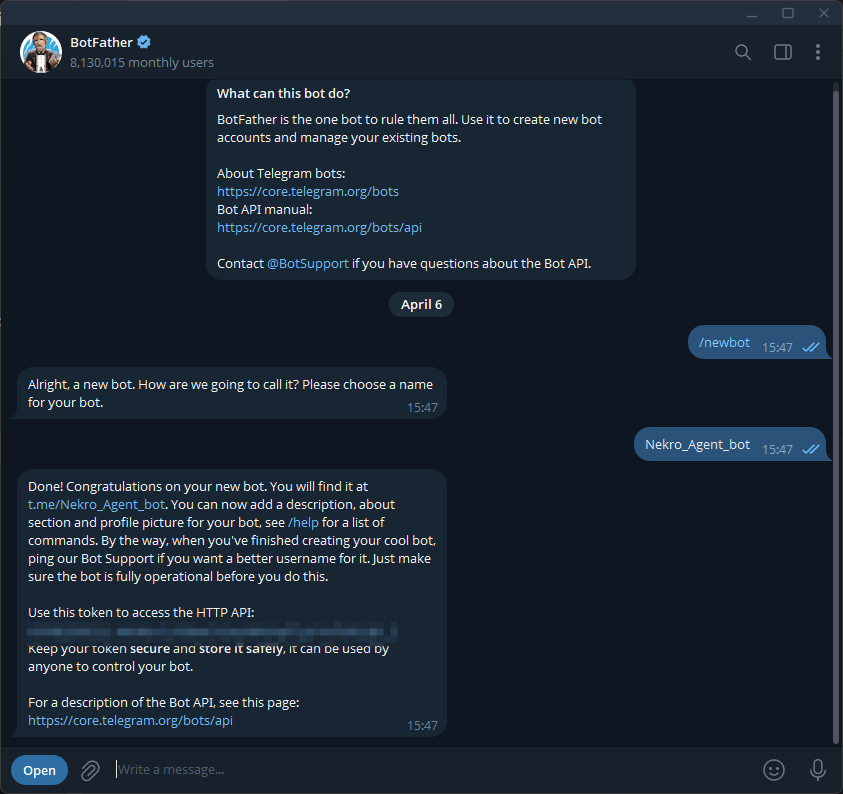
Step 1: Create a bot with BotFather
- Find @BotFather in Telegram
- Send
/newbot - Follow the prompts to set the bot name and username
- Record the returned
Bot Token
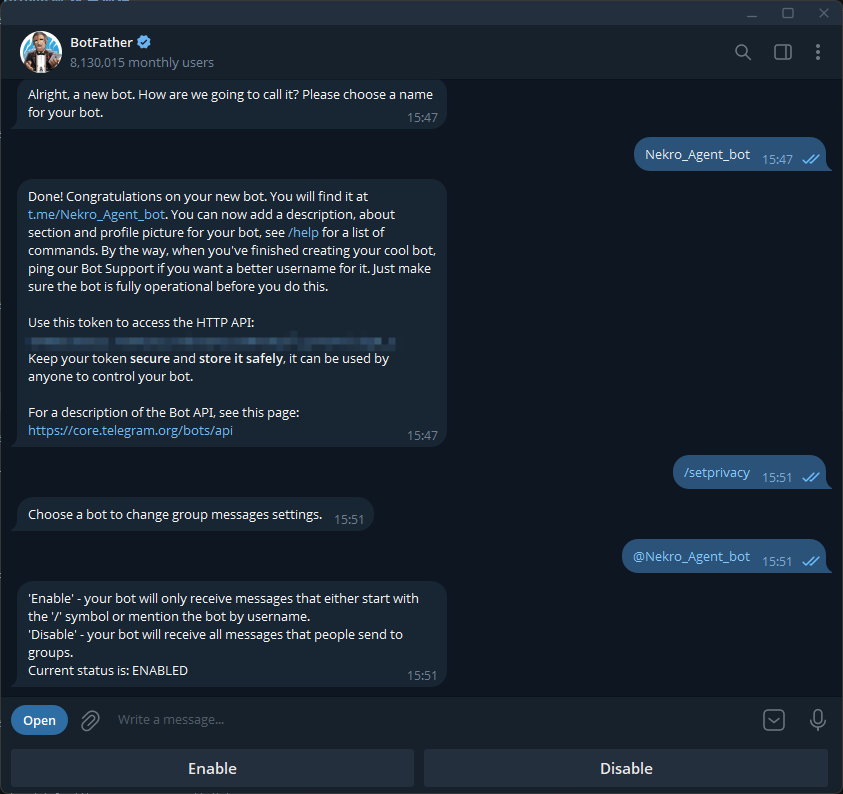
Step 2: Disable the bot privacy setting
Tip
If privacy mode stays enabled, the bot cannot receive regular group messages that do not start with /.
- Find @BotFather in Telegram
- Send
/setprivacy - Select the bot you just created
- Click
Disable
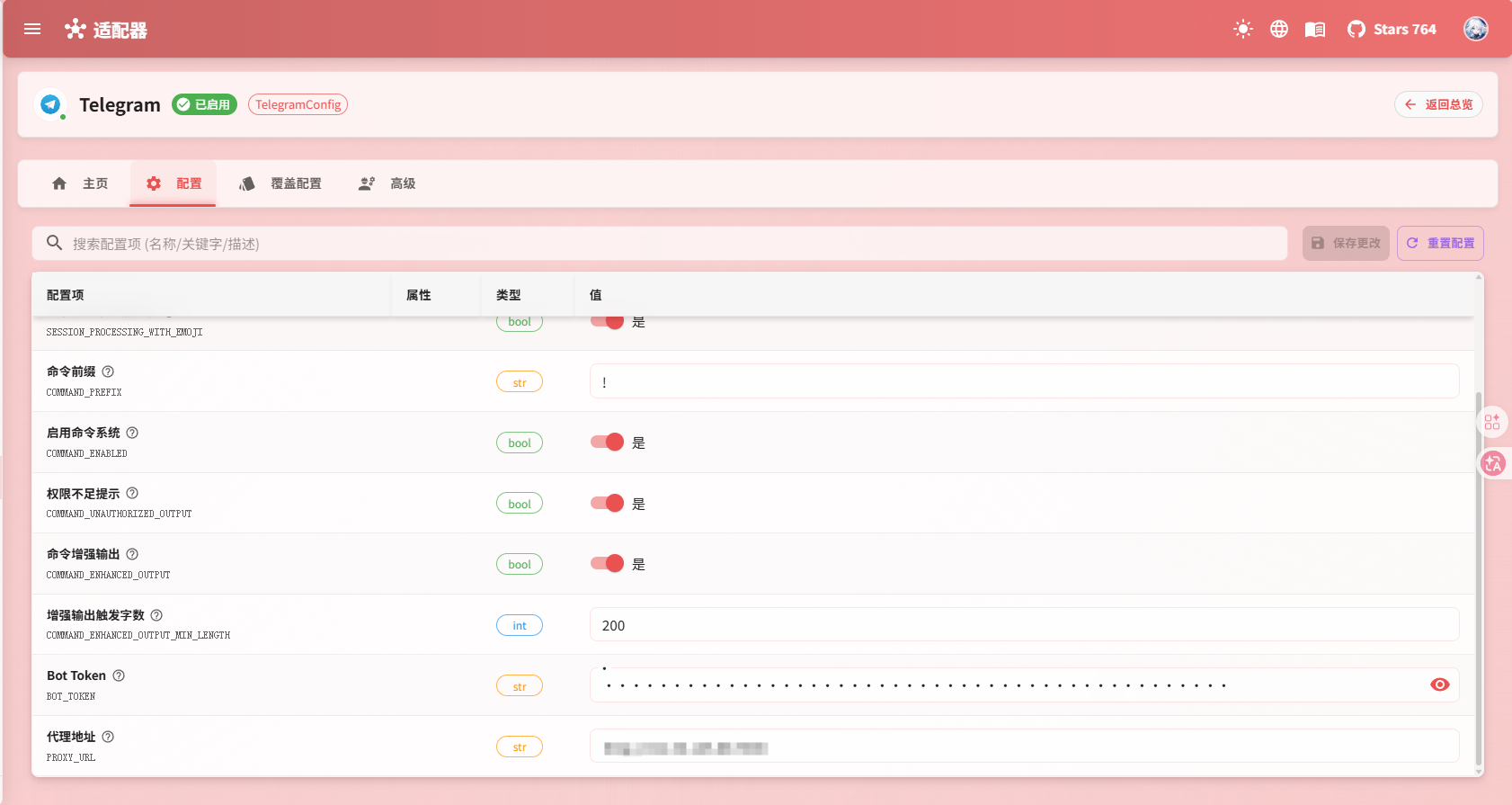
Step 3: Fill in the settings in Nekro Agent
- Open
Adapters->Telegram - Turn on
Enable Adapter - Fill in the
Bot Tokenyou obtained earlier - If your network requires a proxy, also fill in
Proxy URL - Save the settings and restart Nekro Agent
Step 4: Confirm that the setup works
- Send a message to the bot in a private chat
- If you are testing in a group,
@mentionthe bot and send a message - If Nekro Agent replies normally, the configuration is successful
The only two settings most users need to remember
Bot Token: Required. Provided by@BotFatherProxy URL: Only needed when Telegram cannot be reached directly
Common Problems
Nothing happens after startup
Check in this order:
- Whether the
Bot Tokenwas copied correctly - Whether the bot was actually created successfully
- Whether the server can reach Telegram
- Whether a proxy is required but not configured
The bot replies in private chat but not in groups
In group chats, the problem is usually one of the following:
- The bot was not
@mentioned - Privacy mode is still enabled and the message does not start with
/