WeCom AI Bot Configuration Guide
This guide explains how to configure the WeCom AI Bot adapter and connect Nekro Agent through WeCom's official long connection mode.
Before You Start
- You have already deployed Nekro Agent
- You have access to the WeCom admin console
- You can create or manage WeCom AI Bots
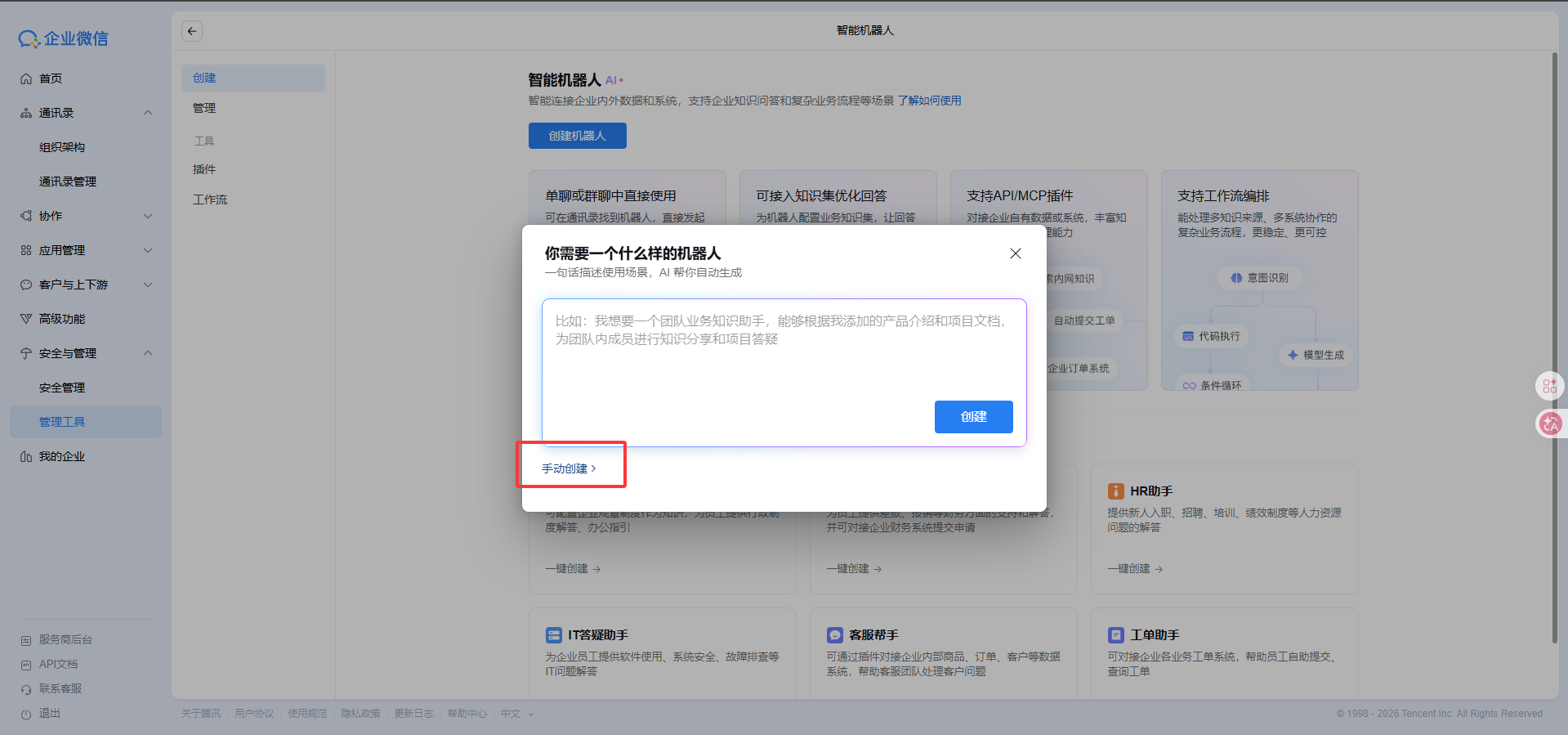
Step 1: Create an AI Bot in the WeCom admin console
- Open the WeCom AI Bot admin page
- Web entry:
Security Management->Management Tools->Smart Robot - Desktop entry:
Workbench->Smart Robot
- Web entry:
- Click
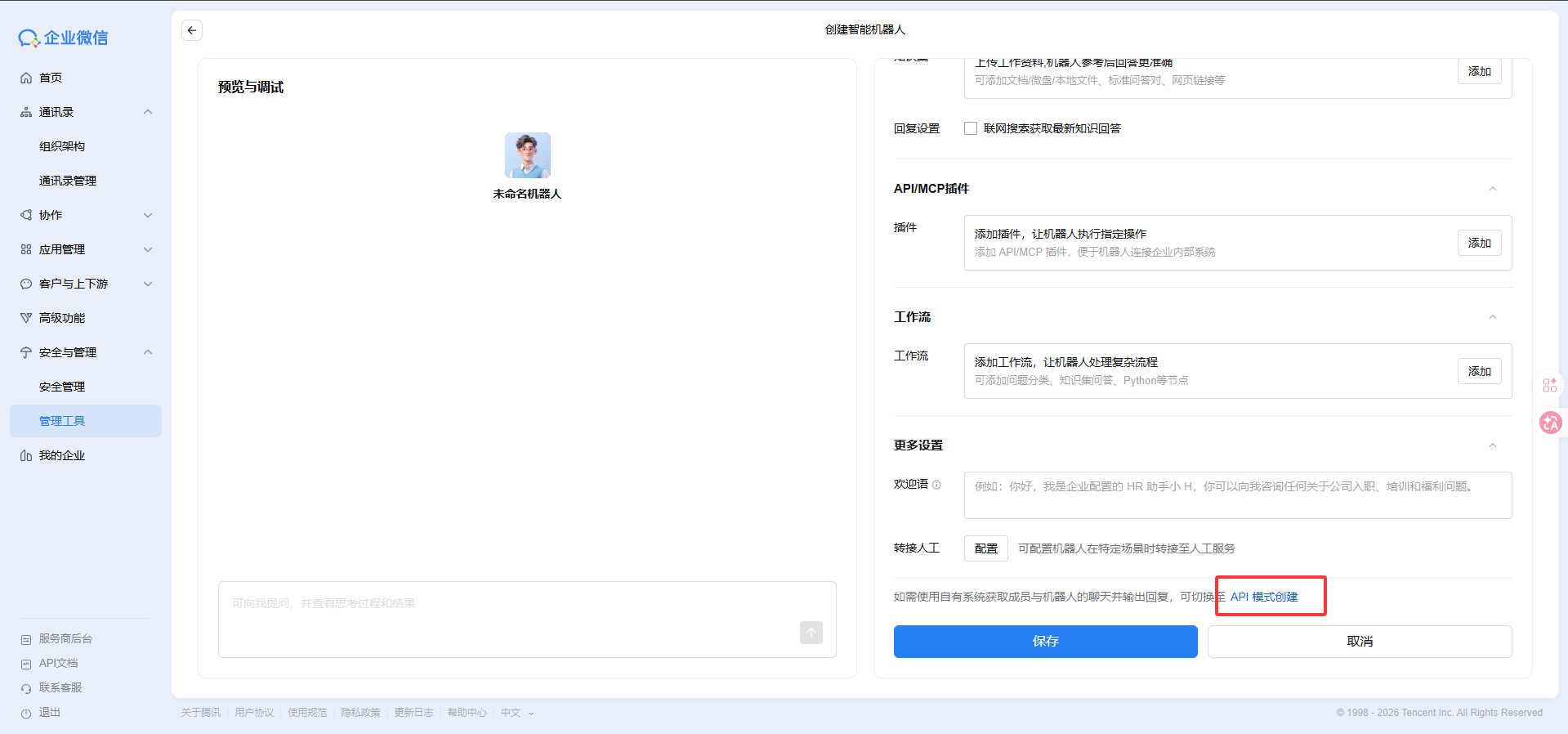
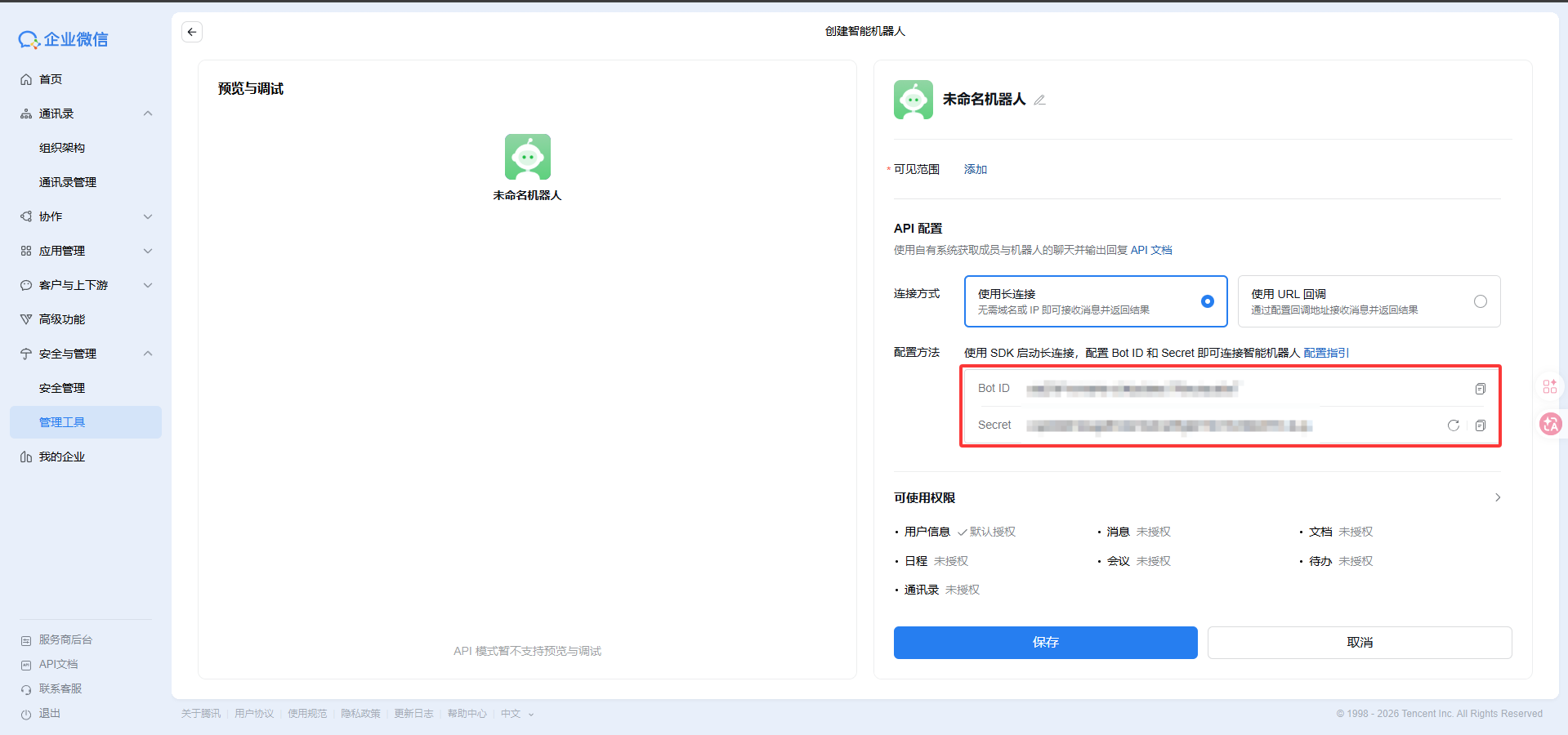
Create Bot, then clickManual Creation, scroll to the bottom of the panel on the right, and chooseCreate in API Mode - Choose
Use Long Connection - Record the following values:
BOT_IDBOT_SECRET
Step 2: Fill in the settings in Nekro Agent
- Open
Adapters->WeCom AI Bot - Turn on
Enable Adapter - Fill in
Bot ID - Fill in
Secret - Save the settings and restart Nekro Agent
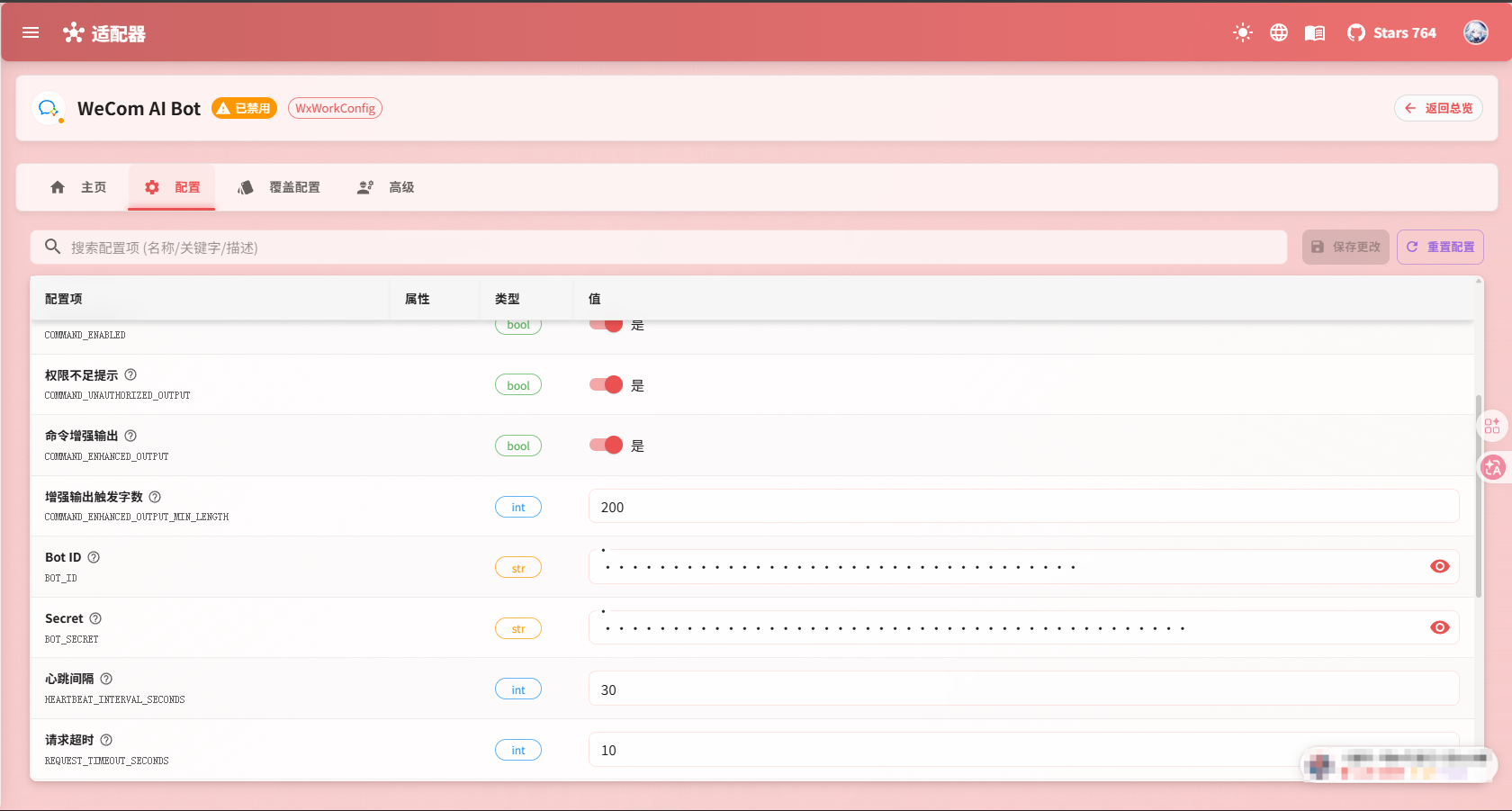
Step 3: Confirm that the long connection is established
After the configuration is complete, check in this order:
- Open the Nekro Agent logs
- Confirm that there are no credential errors
- Send a test message to the bot
- If Nekro Agent can receive and reply normally, the setup is successful
The fields beginners usually need to care about
BOT_ID: Provided by the WeCom AI Bot consoleBOT_SECRET: Provided by the WeCom AI Bot console
The following optional items can usually stay at their default values during the first setup:
Heartbeat IntervalRequest TimeoutBase Reconnect IntervalMaximum Reconnect CountAll received messages trigger AIAccept text messagesLog event callbacksLog raw framesMaximum log length
What this mode is suitable for
- You want to use WeCom's official capability
- You do not want to expose a public callback URL
- You want the bot to send and receive messages directly over a long connection
Current known limitations
- Active sending currently mainly supports Markdown, images, and files
- Voice, video, template cards, and similar features are still incomplete
- In some username or group-name scenarios, raw IDs may still be shown
Common Problems
The logs keep saying it cannot connect
Check these first:
- Whether
BOT_IDandBOT_SECRETwere copied correctly - Whether the bot was actually created successfully in the WeCom console
- Whether the environment running Nekro Agent can reach WeCom's official services
The connection works, but messages are incomplete
This is caused by the current adapter capability boundary, especially for voice, video, and template card messages.